Old news, but for those that missed it - Notifications Reader was reviewed on Android App Arena #57 back in August. Having listened to Jason Howell for many years since his first days on Buzz Out Loud, and now over at TWiT it was nice surprise when Notifications Reader was picked for review.
Check out more great Android app reviews over on the Android App Arena channel
Monday, February 1, 2016

Creating and Editing Notification Rules
The documentation for creating and editing Notifications Rules for matching application notifications and defining the test-to-speech output is a little hard to find in the app - so here it is for easier reference:
Notification Rules
Notification Rules are used to define the desired text-to-speech behaviour for system and application notifications.
Several default rules are pre-configured. As new application notifications are discovered, the rules can be modified to change the rule matching criteria and text-to-speech output.
Text-to-speech Patterns
The text-to-speech pattern is read when a system or application notification is displayed. Data items from the notification can be used to construct the speech output using the substitution patterns described below
_APPNAME_- The application name._TICKER_- The ticker text displayed across the top of the screen when a notification occurs._TITLE_- The title shown on the notification panel._TEXT_- The second line of text shown on the notification panel. Only the first line of text is read to prevent excess text-to-speech output. If the full text output is require use_ALLTEXT_instead._ALLTEXT- The full text of the second line on the notification panel. Use with caution, some applications include a lot of output in the Text field, for example the entire contents of a email._SUBTEXT_- The third line of text shown on the notification panel._SUMMARY_- The text at the bottom of the notification panel._INFO_- The small text on the bottom right notification panel.
An example notification text-to-speech pattern can be constructed as:
Notification from _APP_NAME_. New message from _TEXT_. _TITLE_.
Some applications use multi-line notifications to consolidate multiple alerts into a single notification panel. When creating a text-to-speech pattern for a multiline rule the following additional substitutions can be used:
_LINES_- All the individual notification items._FIRSTLINE_- Just the first entry in the list of notification items._LASTLINE_- Just the last entry in the list of notification items.\<
Notification Matching Patterns
The notification rule used to determine the desired text-to-speech output is selected based on pattern matching against the notification details. The match patterns may can be selected from some common selections like 'Begins with', 'Contains' or on match is the field is blank etc. More complex matching rules can be defined using the 'Match Pattern' section allows for Regular Expression syntax (regex) pattern matching.
- ID - an application specific Id assigned to the notification. This is usually fixed, but some applications generate a new value for each notification. If you find multiple new rules are generated for the same notification try removing this value from the rule pattern.
- TAG - an application specific Tag assigned to the notification. This is usually fixed, but some applications generate a new value for each notification.
- TICKER - the ticker text displayed for the notification.
- TITLE - the title text displayed for the notification.
- TEXT - the second line of text displayed for the notification.
- SUBTEXT - the third line of text displayed for the notification.
- SUMMARY - the summary text displayed for the notification.
- INFO - the info text displayed for the notification.
Adjusting the RULE PRIORITY can be used to ensure more specific rules are matched in priority over generic matching patterns. If multiple rules match the same notification then the rule with the lowest priority value will be used. The default Rule priority for new rules is 100
Monday, July 27, 2015
Some Material Love

Along with the visual update, this version adds enhanced support for importing and exporting Notification Rule sets to save and share your customizations. Rules can be exported by sharing to other Android apps, and imported again by sharing a file or selected rule text back to Notifications Reader.
Support for additional text-to-speech engines selection is also enhanced and has been tested with both IVONA Text-To-Speech HQ and SVOX Classic Text To Speech Engine on Android 5.1
Notifications Reader is available from Google Play or Amazon App Store
Saturday, July 4, 2015
Customizing Notification Rules
One of the most powerful features of Notifications Reader is the notification discovery and the ability to define multiple custom notification matching and text-to-speech rules for a single app. With some tweaking to the default notification matching rules you have full control over what notifications are read aloud, with personalized text-to-speech output
In this post we will take a look at some of the default notification matching rules discovered for the SoundCloud app and how these can be modified.
After using the SoundCloud app to play and record some audio files Notifications Reader has discovered the following rules:

In this post we will take a look at some of the default notification matching rules discovered for the SoundCloud app and how these can be modified.
After using the SoundCloud app to play and record some audio files Notifications Reader has discovered the following rules:

Discovered rules are always prefixed with [New]. Lets take a look at each one in detail and make some changes to customize the text-to-speech output.
Sunday, June 28, 2015
More Tasker Plugin options for Notifications Reader


Saturday, October 18, 2014
Tuesday, October 7, 2014
Tasker/Locale Plugin for Notifications Reader
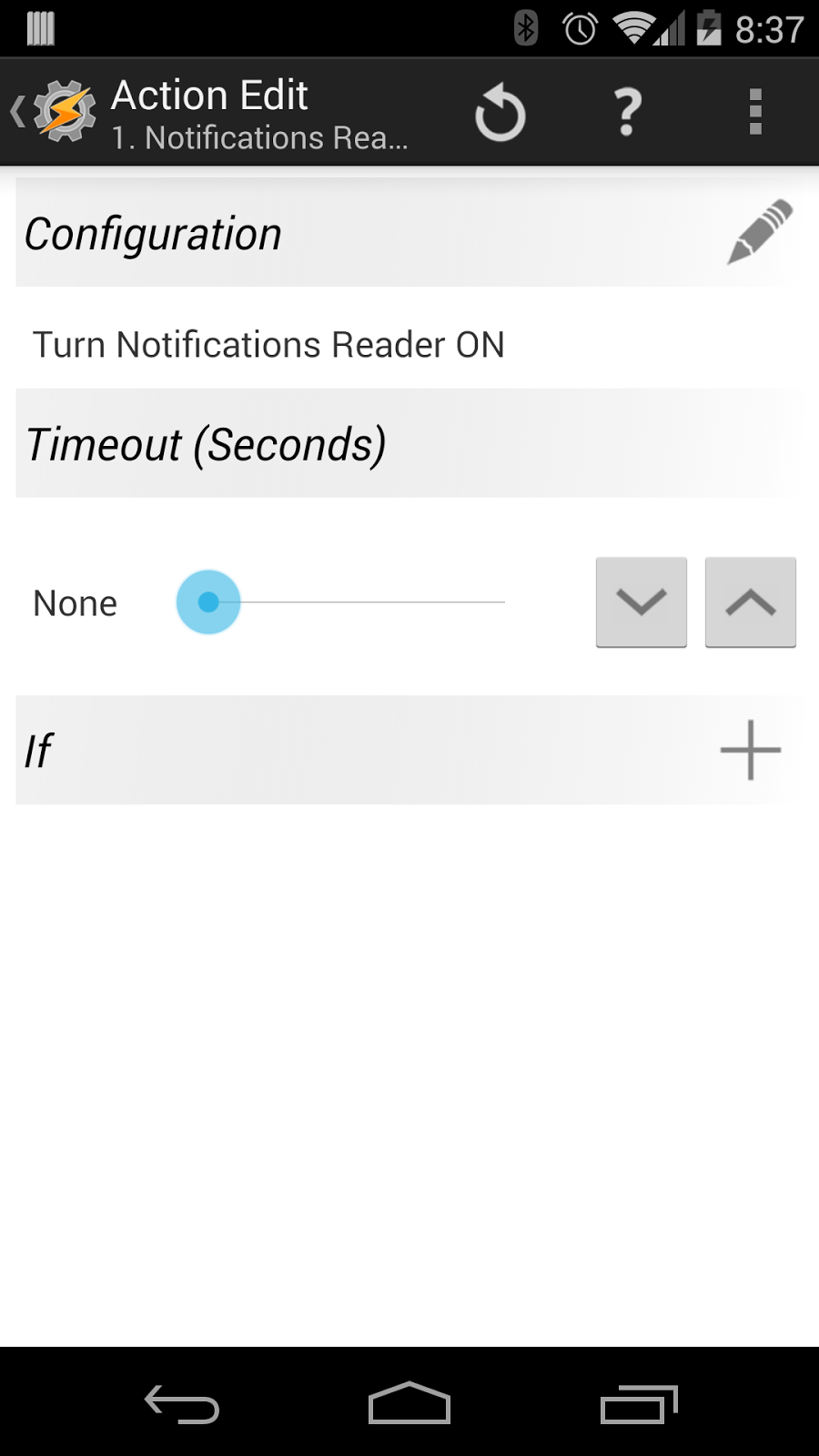
Hearing applications notifications spoken out loud is great, but there are times and places where you don't want Notifications Reader enabled.
With release 1.0.7, Notifications Reader now includes plugin support for Tasker (and Locale - untested) to set custom profiles for when Notifications Reader is enabled or disabled.
To add the Notifications Reader Plug-in Tasks to Tasker:
- Select to add a new Task
- Select the Plugin Actions Category
- Choose the Notifications Reader Plugin Action
- Edit the Action Configuration to choose the desired Action to turn Notifications Reader ON or OFF.
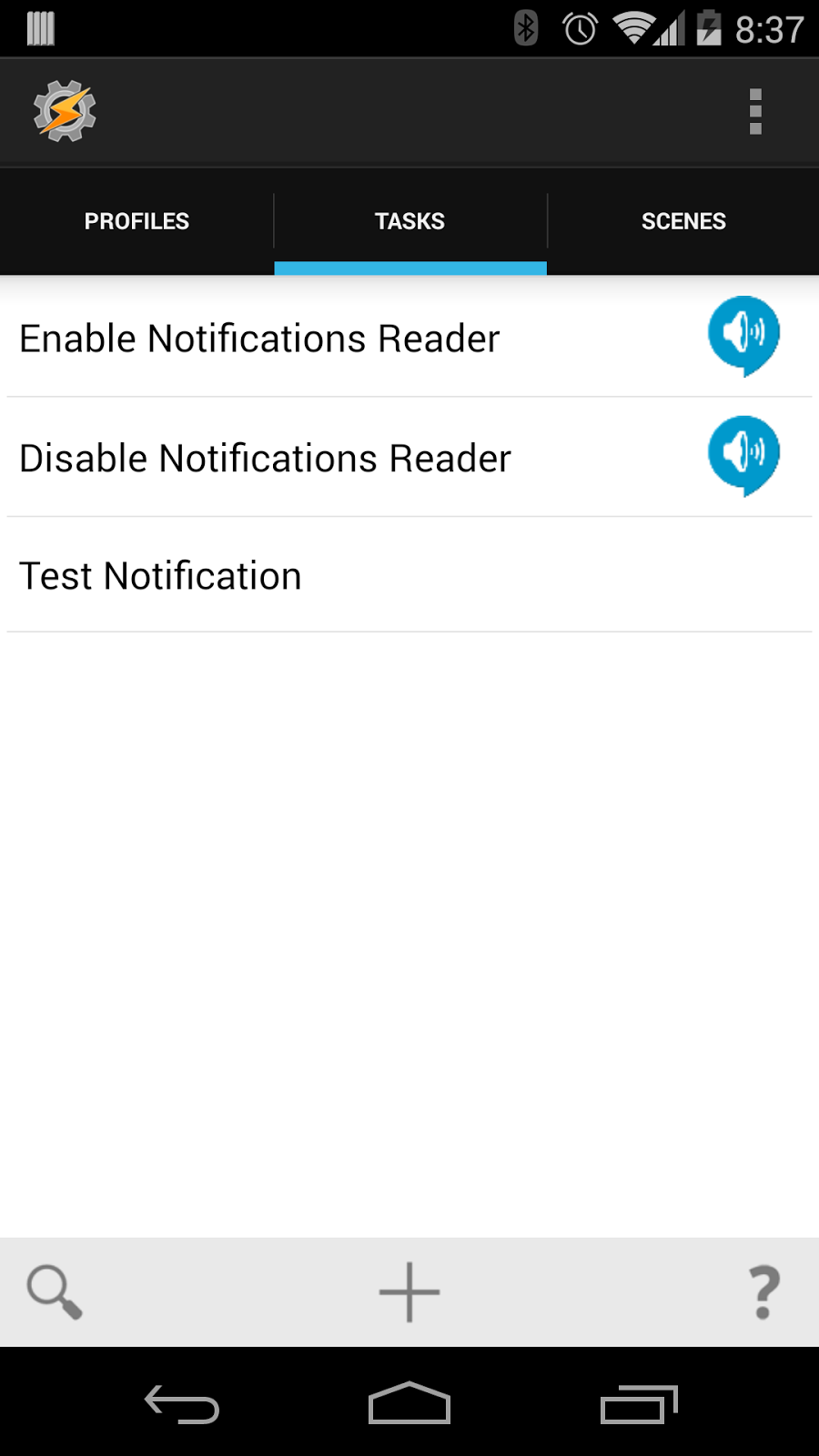 Alternatively you can import the Task definitions below by placing them in the Tasker/tasks folder on the device and choose the Task Import option (long press on the Tasks tab and select Import)
Tasker provides and incredibly powerful set of options to tailor exactly when Notifications Reader is enabled/disabled, for example:
- Create a time based profiles to turn Notifications Reader OFF at night or other specific times of the day
- Create a location based profiles to turn Notifications Reader ON/OFF at home or at work
- Create a sensor based profiles to Notifications Reader on or off based on the orientation of the device; Face-up or Face-down
Subscribe to:
Posts (Atom)