Showing posts with label notifications reader. Show all posts

Sunday, March 20, 2016

Notifications Reader 1.4.0


Notifications Reader release 1.4.0 is now available with several new features and enhancements.

Notifications History


The new Notifications History view shows all android notifications that Notifications Readers has processed in the last 24 hours with details of the rule matching status and the resulting text-to-speech output. 

Auto launch default notification action


The new "Launch default notification activity" option on the notification rule definition will automatically perform the default notification selection action 

Notification Reader application control


The Notifications Reader system notification has been enhanced improved status reporting and allows easy control to pause, resume and disable Notification Reader text-to-speech output

Tasker Plugin Enhancements

A new Tasker plugin event has been added for when the Text-to-speech output has starts speaking

Event lifecycle:

  1. Text-to-speech Started - occurs when the notification is posted and the text-to-speech output is queued for output
  2. Text-to-speech Speaking - occurs when the queued notification text-to-speech output begins speaking
  3. Text-to-speech Completed - occurs when the text-to-speech output has completed
  4. Text-to-speech Canceled - occurs if the text-to-speech output has been interrupted or canceled, e.g. using the shake to stop option. 
The Tasker plugin also sends addition information with the Started, Speaking, Completed and Canceled events which can be accessed in Tasker as Local Variables
  • %app_package - the package name of the application that created the notification
  • %rule_name - the name of the Notification Rule that matched the notification
  • %utterance_id - unique id for the text-to-speach output
  • %tts - the text of the text-to-speech output

For more information on using Tasker variables see http://tasker.dinglisch.net/userguide/en/variables.html

Help

A new set of help links provide easy access to report an issue, suggest enhancements, or contact support


Saturday, February 20, 2016

Notifications Reader and Tasker Recipes - Part 1

Having Notifications Reader read out the details of new emails, alerts and messages is great, really great! But after while you'll realize (or someone else may tell you) that having your phone constantly speak to you can become annoying at times. Modifying the Notifications Rules to only speak notifications of specific applications is one way to tune the application.  But many times it's about the context, not the content, and this is where the Tasker integration makes Notifications Reader even more powerful.

The following describes a couple of Tasker Profile recipes I personally use every day.

Shut-up, I'm trying to sleep - tell me about it in the morning

This first profile ensures that my phone won't disturb a good nights sleep.

Nighttime profile is defined using the Tasker Time context - e.g. between 10:30pm till 6:40am


This profile is assigned to perform the following tasks:
  1. Use the Do Not Disturb Tasker Action to set to Alarms only. This will prevent audio output from all apps, not just Notifications Reader
  2. Use the Notifications Reader Plugin Action to Pause Notifications Reader so any new notifications are saved until Notifications Reader is resumed.

The Nighttime profile is then used in conjunction with my second profile - Get up.  For this I use a more complex profile context: Day is Monday to Friday, Time is between 6:00 AM and 7:00 AM and an Event type of Alarm Done. Assuming you are using the Android Clock as your morning wake-up alarm, the profile gets triggered when alarm is dismissed.


This is mapped to a set of tasks to performs the following:
  1. Use the Do Not Disturb Tasker Action to restore the mode to All. i.e. Do no disturb now is disabled.
  2. Set the Notification Volume to Level 2, an appropriate level to hear the device just a few feet from my head - just in case I had manually turned the volume to far up/down the day before.
  3. Say "Good morning" (optional)
  4. Use the Notifications Reader Plugin Action to Resume Notifications Reader. Any notifications that occurred during the sleeping hours are now read out.


How do you use Notifications Reader?  Would love to hear about other recipes in the comments. Coming in Part 2 - setting a driving profile.


Monday, February 1, 2016

Android App Arena 57: Notifications

Old news, but for those that missed it - Notifications Reader was reviewed on Android App Arena #57 back in August.  Having listened to Jason Howell for many years since his first days on Buzz Out Loud, and now over at TWiT it was nice surprise when Notifications Reader was picked for review.


Check out more great Android app reviews over on the Android App Arena channel

Creating and Editing Notification Rules

The documentation for creating and editing Notifications Rules for matching application notifications and defining the test-to-speech output is a little hard to find in the app - so here it is for easier reference:

Notification Rules

Notification Rules are used to define the desired text-to-speech behaviour for system and application notifications.

Several default rules are pre-configured. As new application notifications are discovered, the rules can be modified to change the rule matching criteria and text-to-speech output.

Text-to-speech Patterns

The text-to-speech pattern is read when a system or application notification is displayed. Data items from the notification can be used to construct the speech output using the substitution patterns described below

  • _APPNAME_ - The application name.
  • _TICKER_ - The ticker text displayed across the top of the screen when a notification occurs.
  • _TITLE_ - The title shown on the notification panel.
  • _TEXT_ - The second line of text shown on the notification panel. Only the first line of text is read to prevent excess text-to-speech output. If the full text output is require use _ALLTEXT_ instead.
  • _ALLTEXT - The full text of the second line on the notification panel. Use with caution, some applications include a lot of output in the Text field, for example the entire contents of a email.
  • _SUBTEXT_ - The third line of text shown on the notification panel.
  • _SUMMARY_ - The text at the bottom of the notification panel.
  • _INFO_ - The small text on the bottom right notification panel.

An example notification text-to-speech pattern can be constructed as:

Notification from _APP_NAME_. New message from _TEXT__TITLE_.

Some applications use multi-line notifications to consolidate multiple alerts into a single notification panel. When creating a text-to-speech pattern for a multiline rule the following additional substitutions can be used:

  • _LINES_ - All the individual notification items.
  • _FIRSTLINE_ - Just the first entry in the list of notification items.
  • _LASTLINE_ - Just the last entry in the list of notification items.\<

Notification Matching Patterns

The notification rule used to determine the desired text-to-speech output is selected based on pattern matching against the notification details. The match patterns may can be selected from some common selections like 'Begins with', 'Contains' or on match is the field is blank etc. More complex matching rules can be defined using the 'Match Pattern' section allows for Regular Expression syntax (regex) pattern matching.

  • ID - an application specific Id assigned to the notification. This is usually fixed, but some applications generate a new value for each notification. If you find multiple new rules are generated for the same notification try removing this value from the rule pattern.
  • TAG - an application specific Tag assigned to the notification. This is usually fixed, but some applications generate a new value for each notification. 
  • TICKER - the ticker text displayed for the notification.
  • TITLE - the title text displayed for the notification.
  • TEXT - the second line of text displayed for the notification.
  • SUBTEXT - the third line of text displayed for the notification.
  • SUMMARY - the summary text displayed for the notification.
  • INFO - the info text displayed for the notification.

Adjusting the RULE PRIORITY can be used to ensure more specific rules are matched in priority over generic matching patterns. If multiple rules match the same notification then the rule with the lowest priority value will be used. The default Rule priority for new rules is 100

Monday, July 27, 2015

Some Material Love

Version 1.3.0 of Notifications Reader is out, and brings a small UI refresh with some improvements adopting more of the Android 5.x Material Design guidelines.

Along with the visual update, this version adds enhanced support for importing and exporting Notification Rule sets to save and share your customizations.  Rules can be exported by sharing to other Android apps, and imported again by sharing a file or selected rule text back to Notifications Reader.

Support for additional text-to-speech engines selection is also enhanced and has been tested with both IVONA Text-To-Speech HQ and SVOX Classic Text To Speech Engine on Android 5.1


Notifications Reader is available from Google Play or Amazon App Store

Saturday, July 4, 2015

Customizing Notification Rules

One of the most powerful features of Notifications Reader is the notification discovery and the ability to define multiple custom notification matching and text-to-speech rules for a single app.  With some tweaking to the default notification matching rules you have full control over what notifications are read aloud, with personalized text-to-speech output

In this post we will take a look at some of the default notification matching rules discovered for the SoundCloud app and how these can be modified.

After using the SoundCloud app to play and record some audio files Notifications Reader has discovered the following rules:


Discovered rules are always prefixed with [New].  Lets take a look at each one in detail and make some changes to customize the text-to-speech output.

Sunday, June 28, 2015

More Tasker Plugin options for Notifications Reader


The Notifications Reader Plugin for Tasker (and Locale) has been extended to support several new Task Actions and add new support to respond to Notifications Reader Events.

Tuesday, October 7, 2014

Tasker/Locale Plugin for Notifications Reader


Hearing applications notifications spoken out loud is great, but there are times and places where you don't want Notifications Reader enabled.

With release 1.0.7, Notifications Reader now includes plugin support for Tasker (and Locale - untested) to set custom profiles for when Notifications Reader is enabled or disabled.

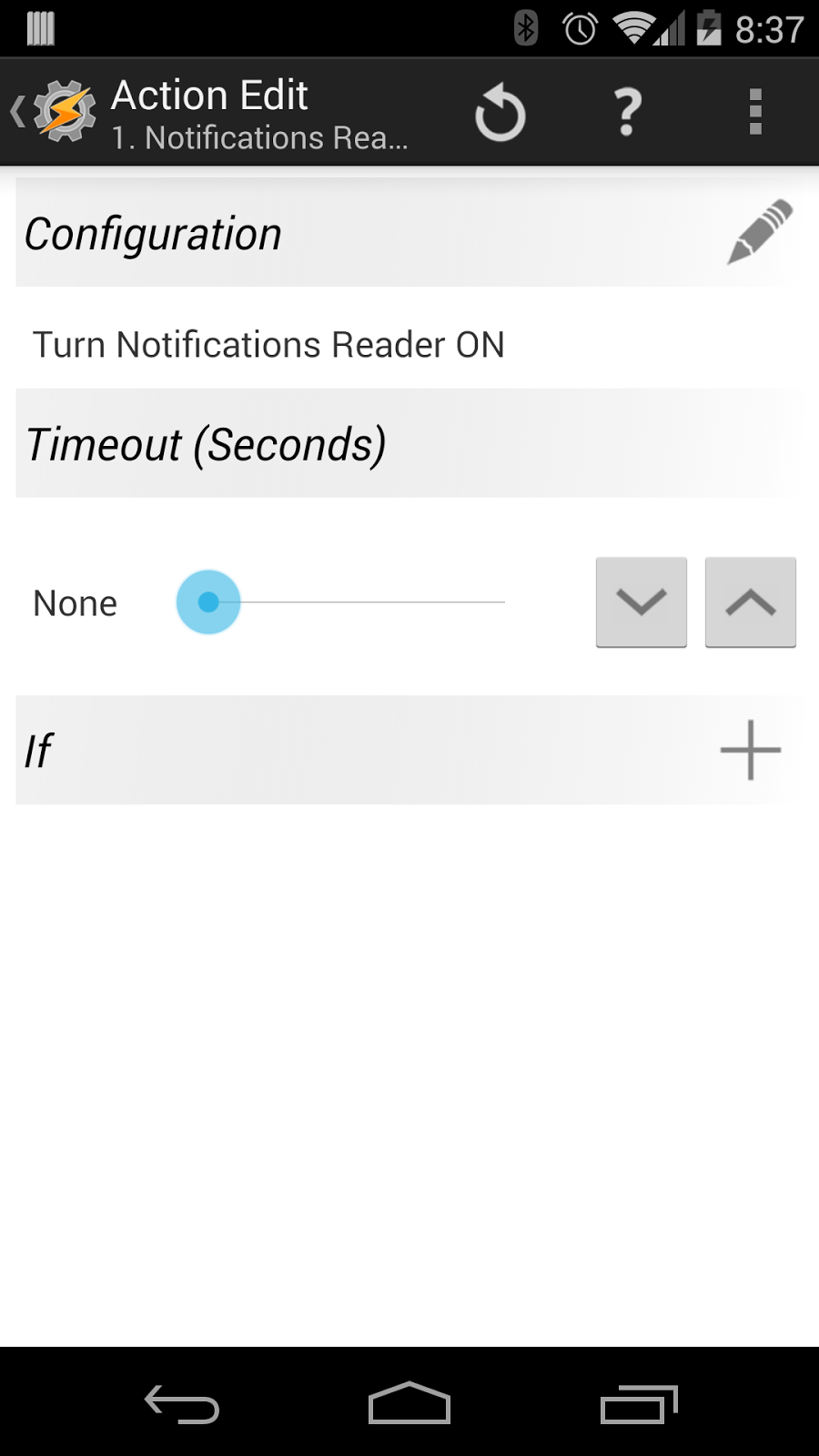
To add the Notifications Reader Plug-in Tasks to Tasker:
  1. Select to add a new Task
  2. Select the Plugin Actions Category
  3. Choose the Notifications Reader Plugin Action
  4. Edit the Action Configuration to choose the desired Action to turn Notifications Reader ON or OFF. 
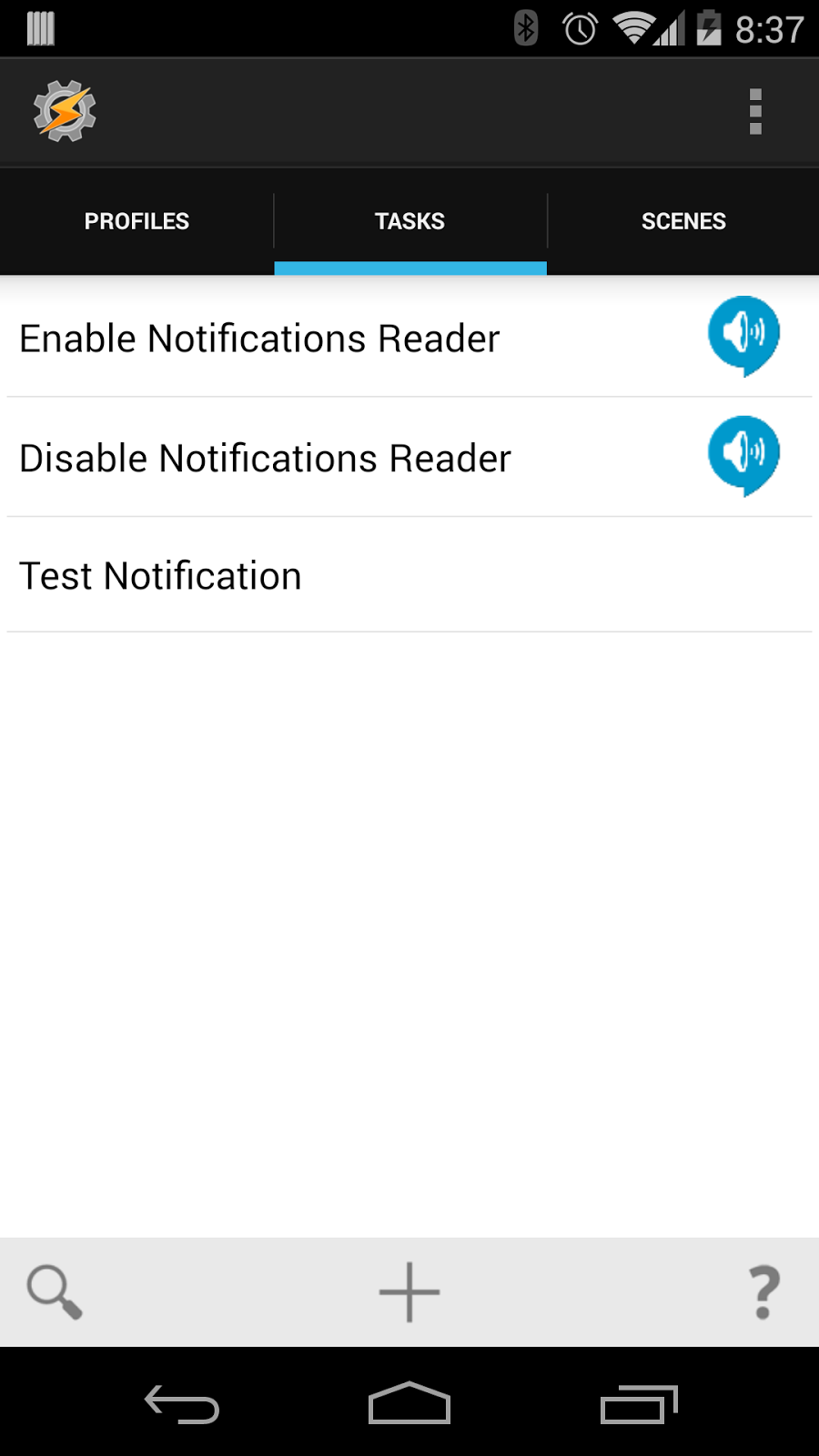
You will probably want to create one task for both the ON and OFF Actions.

Alternatively you can import the Task definitions below by placing them in the Tasker/tasks folder on the device and choose the Task Import option (long press on the Tasks tab and select Import)
Tasker provides and incredibly powerful set of options to tailor exactly when Notifications Reader is enabled/disabled, for example:
  • Create a time based profiles to turn Notifications Reader OFF at night or other specific times of the day
  • Create a location based profiles to turn Notifications Reader ON/OFF at home or at work
  • Create a sensor based profiles to Notifications Reader on or off based on the orientation of the device; Face-up or Face-down


Wednesday, September 24, 2014

Notifications Reader: Importing custom notification rule sets

With release 1.0.4 of Notifications Reader comes experimental support for adding additional predefined rule sets for some common android applications.

This feature is still under development and subject to change.

A Notification Rule Set is a collection of rules defined in a .nr-rule file.  A few initial rules sets are available below:

Facebook
Twitter
Instagram
Dropbox
Skype

You can also load the latest set of Android System and Google Apps Notification Rules. Loading this rule set will overwrite any rules changes you have made to the initial set of default rules loaded when you first installed the app.

Loading Rule Sets

To load the rule set the rule file must first be transfer to the devices storage and opened using a suitable file manager application. The file must have a .nr-rule extension. When selecting the file you should be given the option to complete action or open the file using Notification Rules. Loading rule sets from Dropbox, using the Dropbox app will also work, however trying to load notification rule files for Google Drive is known not to work at this time. Direct install from the web link is coming soon...

Reloading a rule set will overwrite any changes you have made to the rules previously loaded from the same rules file.

Creating your own rules sets

Creating a rule set is an excellent way to backup your notification rule changes, transfer rules to another device, or to create a rule set to share with others. The structure of the rule set is a simple json format with multiple rule definitions in a single json array.

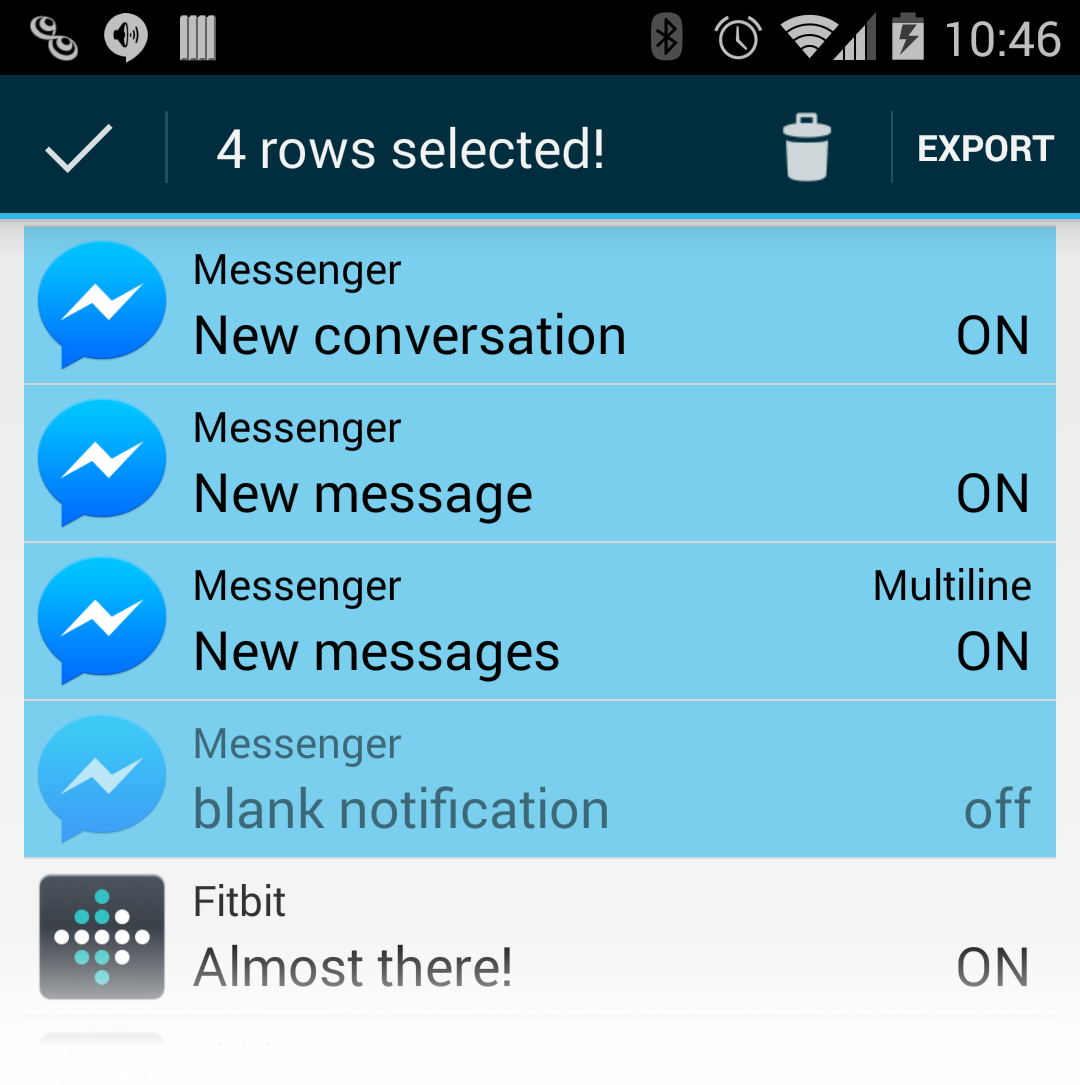
Rule sets can be created directly from the Notifications Reader app by selecting one of more rules for the Rules List and choosing export and selecting a suitable app the send the export data to. Send to Dropbox for example will allow saving directly to a file (remember to save with a .nr-rule file extension to enable re-importing)

Two key attributes in the rule definition are the source and sourceId which are used to uniquely identify each rule. The source can be any value to identify the creator of the rule (along with any sub-packaging), and the sourceId must be unique within the with scope of the source. When a notification rule file is re-loaded rules matching the source/sourceId will be updated with the new rule definitions.

Share you custom rule sets

If you create any interesting rule sets share them in the comments below or send then to jabanaki@gmail.com

Tuesday, September 16, 2014

New App! Notifications Reader

Try the new Notifications Reader app. Now available on Google Play

Turn system and application notifications into hearable text-to-speech alerts

Notifications Reader gives your applications a voice. Augment the default application notification beeps, clicks, pops and chimes with customizable text-to-speech alerts. Use Notifications Reader to read text messages, say who a new email is from, or when announce when a background task is complete.

"You have a new email from John Doe. Lets meet for lunch today"
"New message from Jane: I'll be 10 minute late"
"Invoice.pdf download complete."

Custom notification rules define the desired text-to-speech behavior for system and application notifications. Several default rules are pre-configured, and as new application notifications are discovered new rules are automatically created that can be modified to change the text-to-speech output.

By using advanced notification matching patterns different speech output can be set depending on the content of the notification.

Notification Reader